
User Invitations
Invite a colleague to join your organization on XCS.AF, whether or not they already have an account.
Permissions
| Action | Who can do it |
|---|---|
| View sent invitations | Users with the "Read User Invitations" permission |
| Send an invitation | Users with the "Create User Invitations" permission |
| Renew an expired invitation | Users with the "Update User Invitations" permission |
| Cancel an invitation | The Cancel button is shown to users with the "Update User Invitations" permission; cancelling itself requires the "Delete User Invitations" permission |
| Accept or decline an invitation you received | Anyone with an XCS.AF login — no special permission needed |
Sending an invitation
- In the top navigation, click Administration → User Invitations.
- Click the green + button.
- Fill in the invitee's email, salutation, first name, and last name.
- Set an expiration date and time — it defaults to 5 days from now, but you can change it.
- Click Send.
The invitee receives an email with a short invitation code (their "token"). What the email says depends on whether that email already has an XCS.AF account:
- No existing account — the email invites them to sign up, with the token pre-filled into the signup form via a link.
- Existing account — the email asks them to sign in and use the token from their My Profile page.

Viewing and managing sent invitations
The User Invitations list shows every invitation you've sent, with its recipient, email, token, status, send date, and expiration date.
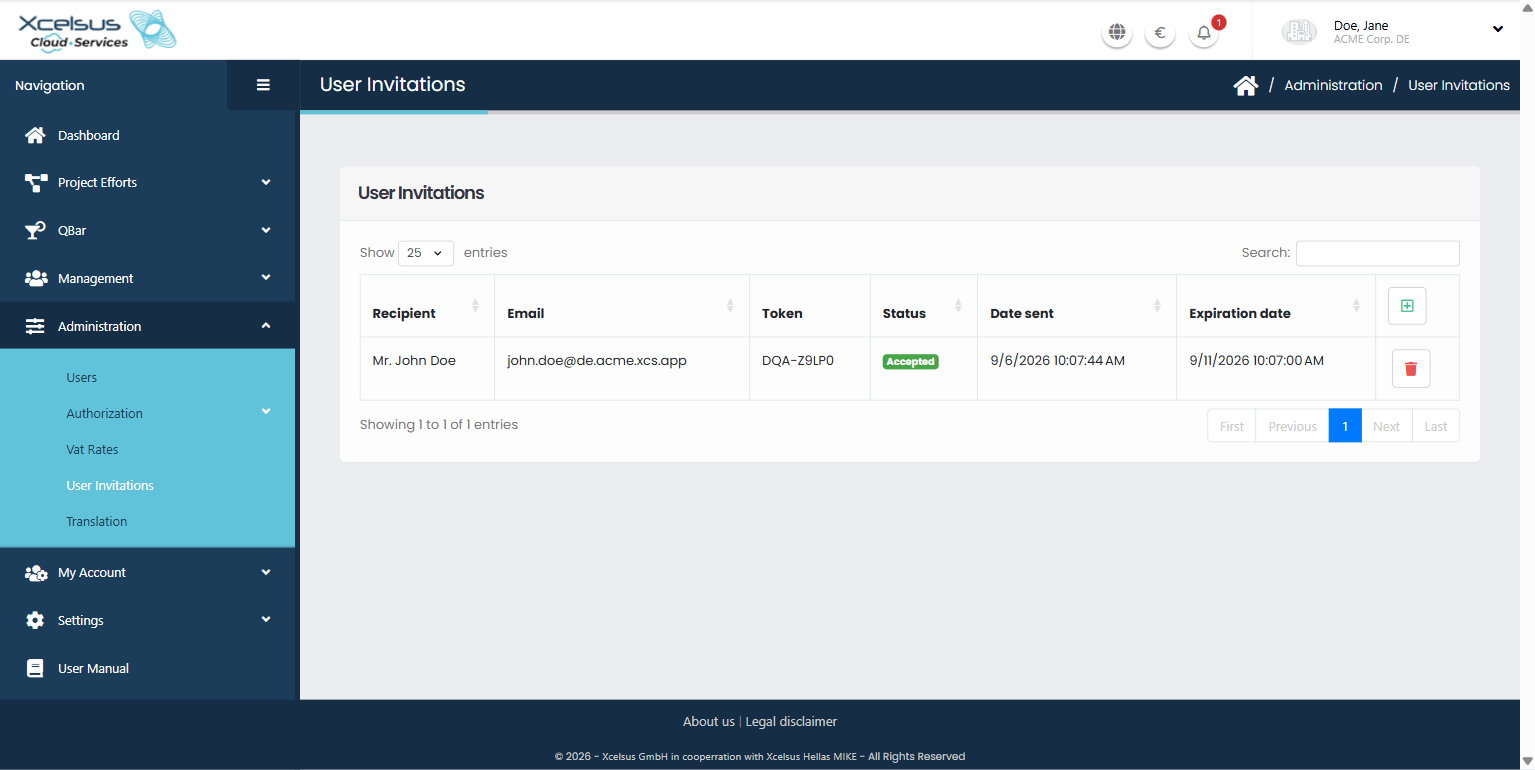
Status meanings:
- Pending — sent, not yet acted on, still within its expiration window.
- Accepted — the invitee joined your organization.
- Declined — the invitee explicitly declined.
- Expired — nobody accepted it before the expiration date/time passed.
Cancelling an invitation
Click the trash icon next to a pending invitation. This permanently removes it — there's no way to bring it back; send a new one instead.
Renewing an expired invitation
Once an invitation shows Expired, a Renew option appears for it. This gives it a fresh expiration date/time (same default length as a new invitation) without changing anything else about it.
Accepting an invitation
What you see depends on whether you already have an XCS.AF account.
You don't have an XCS.AF account yet
- Open the invitation email and click the sign-up link (or go to the sign-up page and enter the token manually).
- Complete the sign-up form — your name and email are pre-filled from the invitation.
- Once you finish signing up, you're automatically added to the inviting organization.
You already have an XCS.AF account
Two ways to accept:
- From your account — if the invitation was sent to the same email you're logged in with, it appears automatically. Go to My Account → My profile; under "User Invitations" you'll see it listed with Accept/Decline buttons.
- Using the token — click USE TOKEN on the same page, paste in the code from the invitation email, and confirm.

Declining an invitation
Click Decline next to the invitation on your My Profile page. This is final — the inviter would need to send a new invitation for you to join later.
After accepting
Joining an organization through an invitation does not automatically grant you any specific permissions — you'll be able to sign in and see the organization, but an administrator still needs to assign you permissions separately under Administration → Authorization → User Permissions.
Troubleshooting
"This invitation has already been used or is invalid"
The token might be mistyped, or the invitation may have expired or already been accepted/declined. Ask the inviter to check the invitation's status, and send a new one or renew it if needed.
"An invitation for this email already exists"
You can't send a second invitation to the same email for the same organization while a pending (or unrenewed expired) one already exists. Cancel the existing one first, or renew it if it's expired.
Getting help
If you're having trouble sending or accepting an invitation, contact **support@xcs.app** with the recipient's email and, if possible, the invitation token.