
Managing Subscriptions
Learn how to upgrade, downgrade, or cancel your subscriptions, and understand what you'll be charged before confirming any changes.
Permissions
Who can manage subscriptions:
| Action | Who can do it |
|---|---|
| View my subscriptions | All users |
| Upgrade to a higher tier | Users with subscription purchase permission |
| Downgrade to a lower tier | Users with subscription management permission (must wait for current subscription to expire) |
| Cancel a subscription | Users with subscription management permission |
| Enable/disable automatic renewal | Subscription owner |
For administrators: To grant someone the ability to purchase subscriptions, assign the "Create Subscriptions" permission in Administration → Authorization → User Permissions.
Overview
Your subscriptions determine which applications and features you have access to. You can:
- Upgrade immediately — Start a new, higher-tier subscription today and receive a pro-rata credit for the time remaining on your current subscription
- Schedule an upgrade for later — Upgrade your subscription to begin on the day your current subscription ends (no pro-rata adjustment)
- Downgrade — Lower your tier or billing period, but only after your current subscription expires
- Cancel — Stop a subscription and prevent automatic renewal
Trial subscriptions
Some applications offer a trial (test) edition for a limited time at no cost. A trial can be used only once per application. After your trial expires, you can subscribe to a paid edition.
Viewing your subscriptions
- In the top navigation, click My Account → Manage Subscriptions
- You see a list of your active and expired subscriptions, organized by application
- For each subscription, you see:
- Application name and edition tier
- Start and end dates
- Monthly cost (net and with tax)
- Whether automatic renewal is enabled

Upgrading a subscription
Starting a new subscription
If you don't have an active subscription to an application, you can subscribe to any edition.

Choosing how to pay
In the Subscribe dialog you choose how to pay for the edition:
| Option | How it works |
|---|---|
| Pay with stripe | Pay by credit or debit card. If your organization has a saved card, it's charged when you click Subscribe; otherwise enter your card details in the dialog. |
| Pay with PayPal | If your organization has a linked PayPal account, it's charged when you click Subscribe. Otherwise PayPal's own buttons appear — approve the payment in PayPal's window; your PayPal account is then saved for next time. |
| Neither selected | The amount is paid from your account balance. |
Which options you see depends on the edition. Xcelsus decides which payment methods are accepted for each edition, so an edition may offer only one of the two, or neither — then you pay from your account balance.
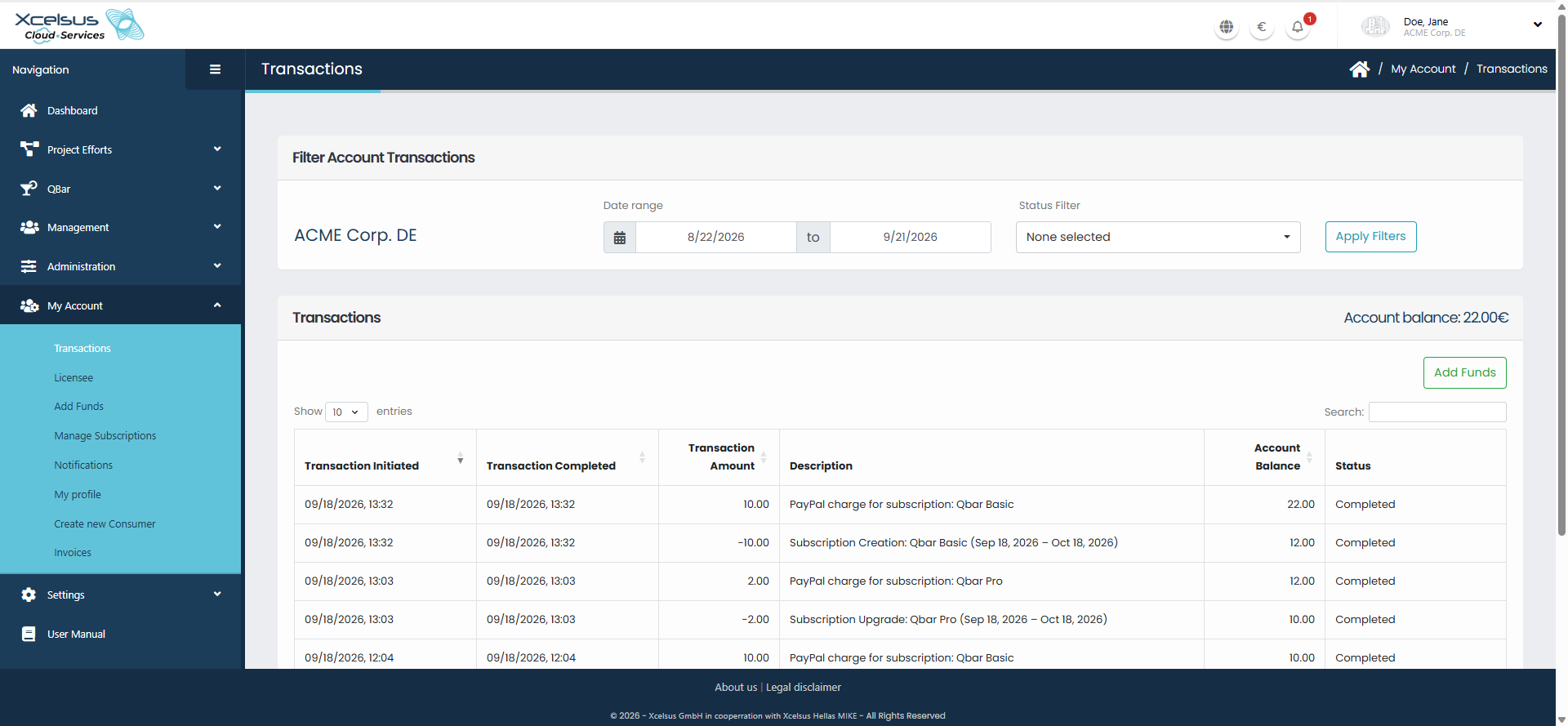
A card or PayPal payment is first added to your account balance, and the subscription charge is then deducted from it. You'll see both entries under My Account → Transactions.
If the payment provider is still processing your payment, you'll see a message saying so. The amount is added to your balance as soon as the provider confirms it; you can then subscribe from your balance.
Immediate upgrade (start today)
If you want to start a higher tier immediately, XCS.AF calculates a pro-rata charge based on how many days remain in your current subscription.
Example:
- Current subscription: €100/month, ends in 10 days
- Upgrade to: €200/month
- Daily rate of old subscription: €100 ÷ 30 days = €3.33/day
- Credit for remaining 10 days: €3.33 × 10 = €33.30
- New subscription full price: €200
- You pay: €200 − €33.30 = €166.70
Steps:
- On the Manage Subscriptions page, find the subscription you want to upgrade
- Click Upgrade
- In the dialog, select the new edition tier
- Set the start date to today (or any date within the current billing period)
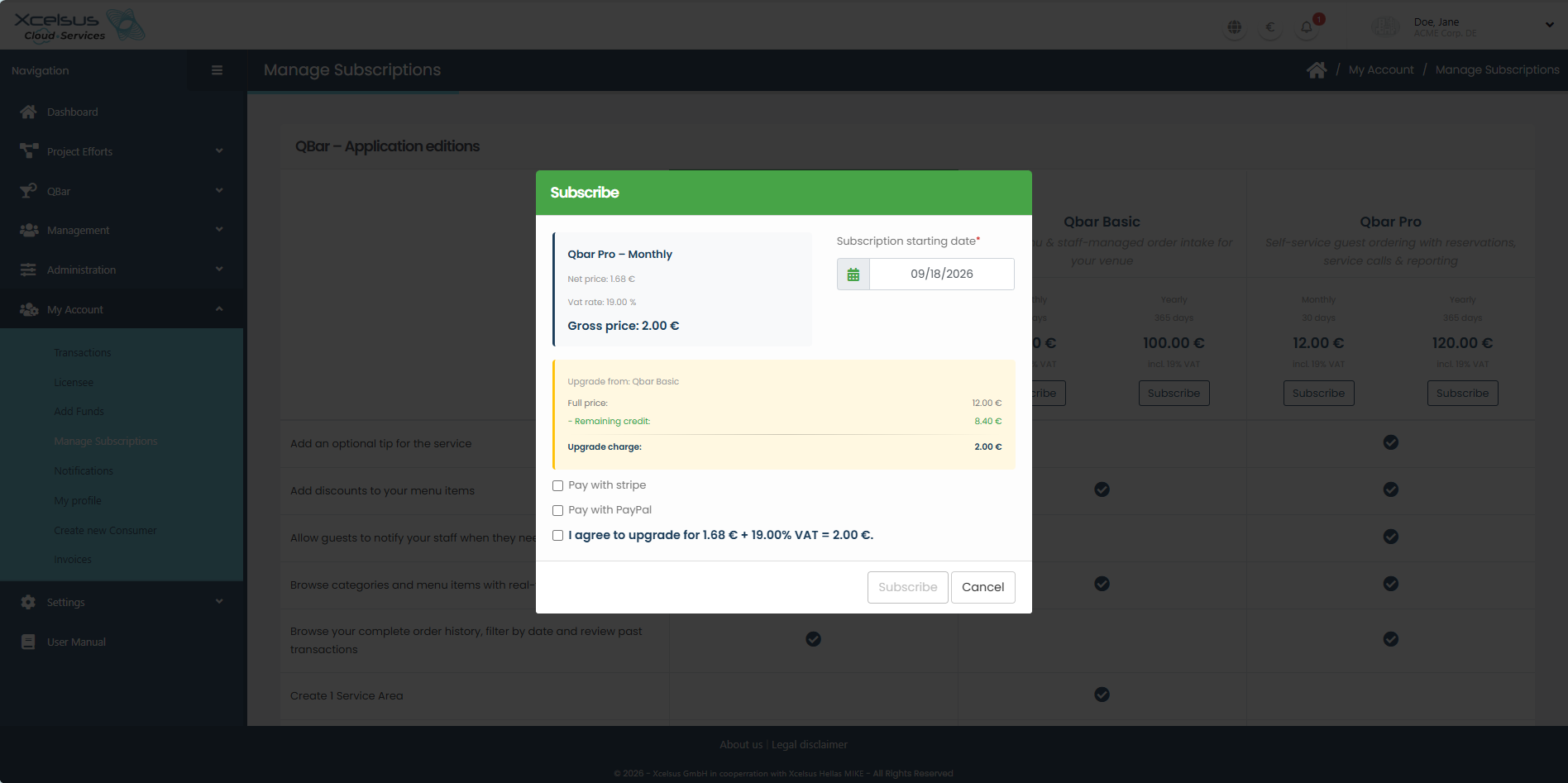
- Review the pro-rata calculation:
- "Remaining credit" shows what you'll receive for unused time on your current subscription
- "Amount to charge" shows the net amount after the credit is applied
- Choose how to pay (see Choosing how to pay). If you pay from your balance, make sure it covers the amount
- Click Confirm upgrade
- The new subscription starts immediately; the old subscription ends today
What happens if you don't have enough balance
If your account balance is too low to cover the charge, you'll see an error message. If the dialog offers Pay with stripe or Pay with PayPal, you can pay that way instead. Otherwise:
- Go to My Account → Add Funds
- Top up your account using your preferred payment method
- Return to Manage Subscriptions and retry the upgrade
Downgrading a subscription
You can lower your tier or move to a shorter billing period, but only after your current subscription expires. Until then, downgrade options are disabled.
Why? To keep billing simple and avoid mid-period adjustments that could complicate your records.
Steps:
- On the Manage Subscriptions page, find the subscription you want to downgrade
- Note the expiration date shown
- Wait until that date passes
- Return to Manage Subscriptions
- The downgrade option now appears
- Click Downgrade, select the lower tier, and confirm
Canceling a subscription
Canceling stops the subscription immediately and disables automatic renewal.
Steps:
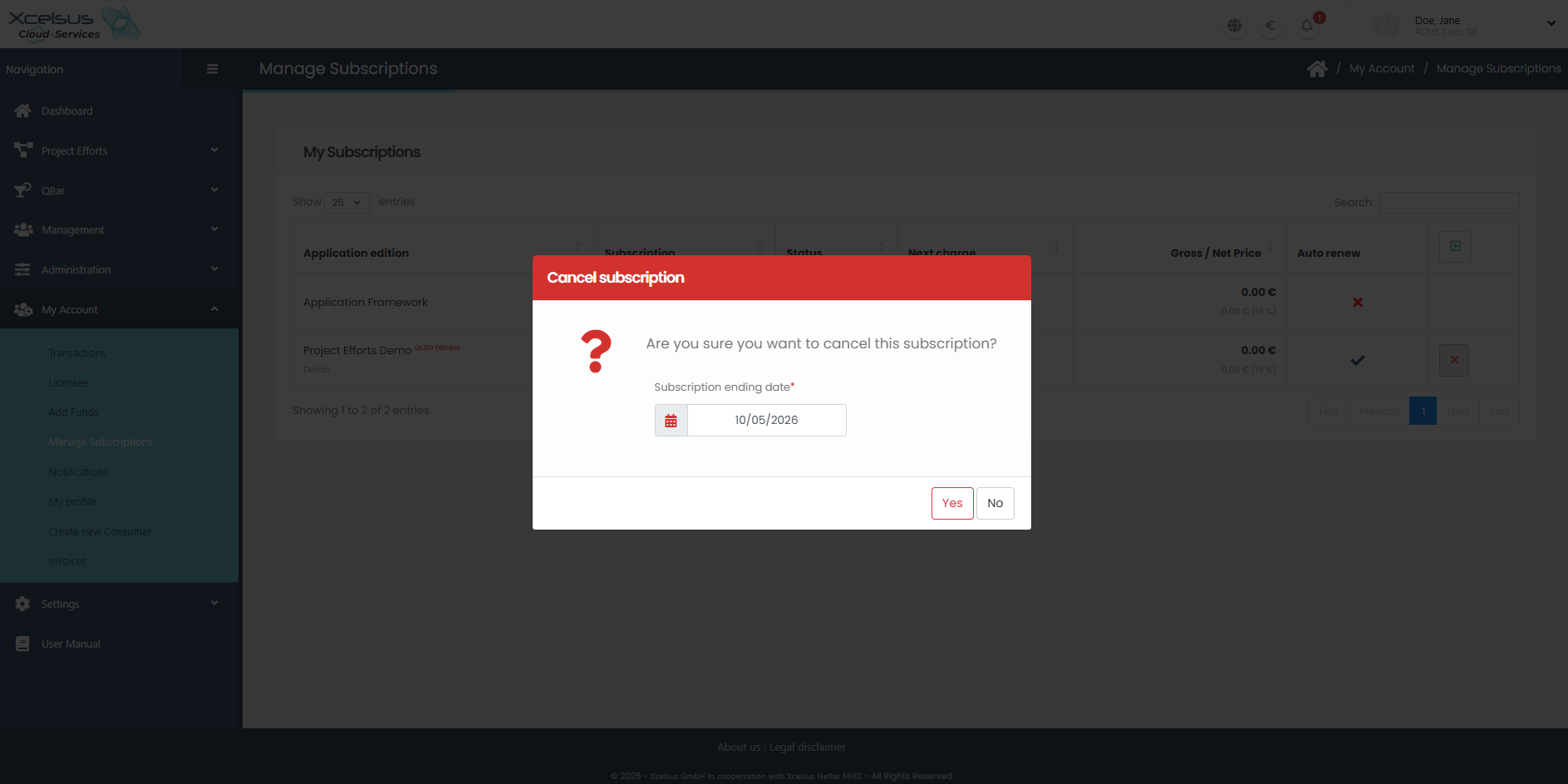
- On the Manage Subscriptions page, find the subscription you want to cancel
- Click Cancel
- Confirm in the dialog
- The subscription ends immediately
- You lose access to that application's features at the end of your current billing period
If your subscription has automatic renewal enabled, canceling also prevents the automatic renewal from triggering.
Automatic renewal
When automatic renewal is enabled, your subscription automatically renews on the day it expires (using your saved payment method or account balance, depending on your settings).
About automatic renewal
- Automatic renewal is set when you create or upgrade a subscription
- If enabled, your subscription will renew automatically using your account balance or saved payment method
- If you don't have sufficient balance and no saved payment method, the renewal will fail and you'll receive a notification
- Currently, there is no toggle to enable/disable automatic renewal after subscription creation
Understanding the charges
Net vs. gross
- Net: The subscription price before tax
- Gross: The net price plus your region's applicable value-added tax (VAT)
Your invoice and account statements show both amounts.
Pro-rata calculations
When you upgrade immediately, XCS.AF calculates how much to charge based on:
- Remaining days in your current subscription
- The daily rate of your current subscription's price
- The full price of the new edition
The formula is: New price − (daily rate × remaining days)
When you're charged
Charges are applied immediately when you confirm a subscription change. The amount is deducted from your account balance. If you don't have enough balance, the transaction is declined. If you pay by card or PayPal in the dialog, that payment is added to your balance first, so the charge is covered.
To check your account balance before making a subscription change, go to My Account → Transactions. Your current balance is displayed at the top of the transaction list.
Troubleshooting
"This application already has an active subscription"
You cannot subscribe to the same edition twice. If you're trying to upgrade to the current edition, this error appears. To change your plan:
- Upgrade to a higher tier (available immediately)
- Downgrade to a lower tier (available after your current subscription expires)
"The trial edition for this application can only be used once"
Trial subscriptions can be used only once per application per consumer. After a trial expires, you must upgrade to a paid edition if you want to continue using that application.
"Your account balance is too low"
Your balance doesn't cover the subscription cost. Pay by card or PayPal in the dialog, if offered, or go to My Account → Add Funds to top up your account, then retry.

"Pay with stripe" or "Pay with PayPal" isn't shown
Xcelsus decides which payment methods are accepted for each edition, so not every edition offers both. Pay with the option shown, or from your account balance. If you need a payment method that isn't offered, contact support.
"… is not available for this edition"
The payment method you chose is no longer accepted for this edition — for example, because it was changed while the dialog was open. Close the dialog, open it again, and choose one of the options shown.
"Downgrading to a lower tier is not allowed while you have an active subscription"
Downgrades are only available after your current subscription expires. Check the expiration date on your subscription and try again after that date.
Getting help
If you have questions about a subscription charge or need assistance with a subscription change, contact **support@xcs.app** with:
- The application name
- Your current subscription tier and dates
- What you're trying to do (upgrade, downgrade, or cancel)