
Projects
Set up the projects your organization tracks work against — who's assigned, at what rate, and, if you choose, within what budget.
Permissions
What you can do here depends on your role and the permissions your administrator has granted you:
| Action | Who can do it |
|---|---|
| View the Projects list | Anyone granted view access to Projects |
| Add / edit / delete a project | Anyone granted the matching permission |
| View or manage a project's employee assignments | The project's current project manager, or anyone granted the relevant permission |
For administrators: these are permissions you may need to assign under Administration → Authorization → User Permissions, listed under the Project Efforts application. Look for Create Projects, Update Projects, Delete Projects, and Manage Project Employees. Being set as a project's manager (see "Assigning employees" below) already grants access to that one project's employees, without needing Manage Project Employees.
Viewing your projects
Go to Project Efforts → Configuration → Projects. The table lists every project: name, customer, duration, budget, expenses so far, and budget remaining.
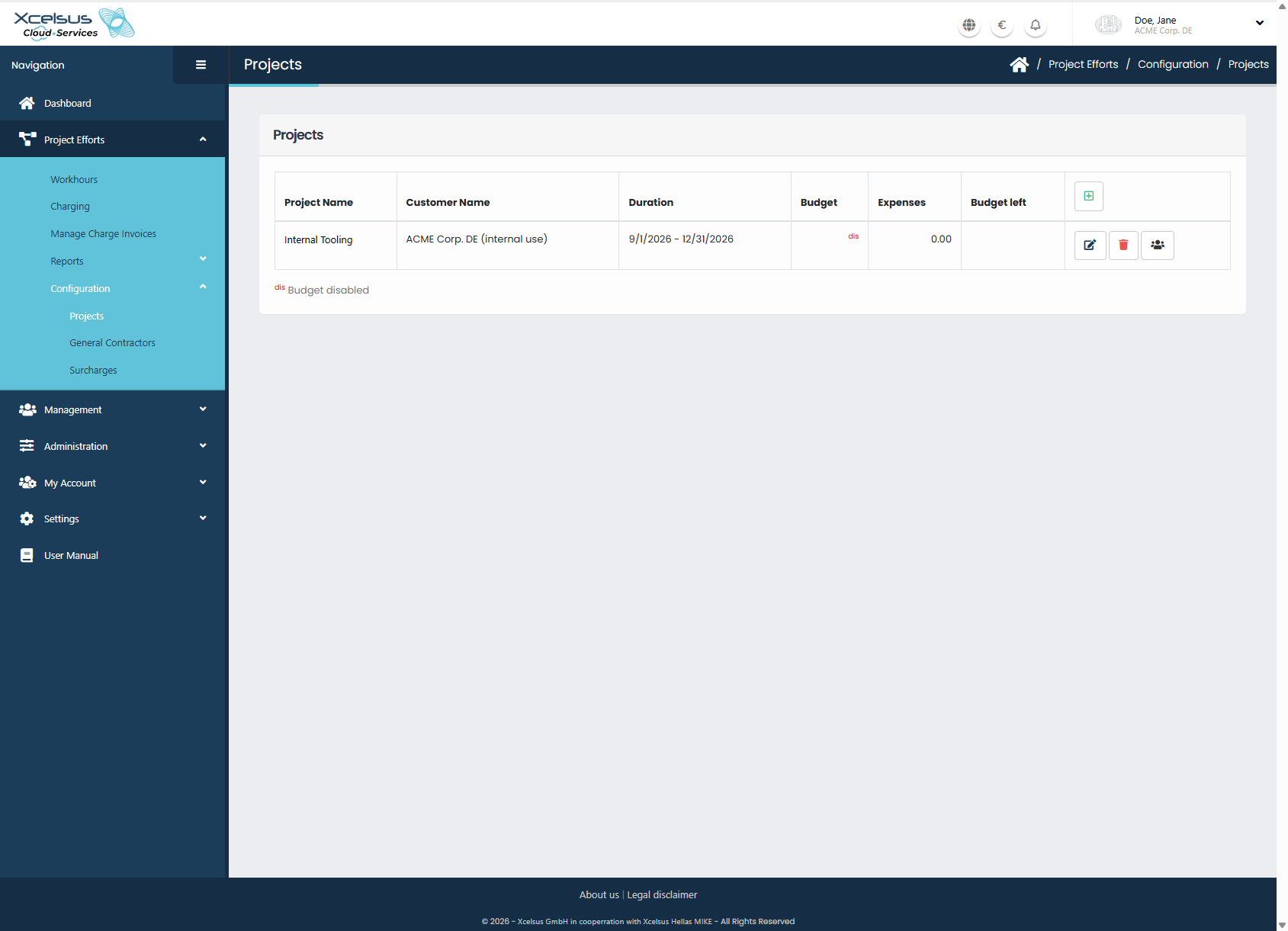
If a project's budget tracking isn't enabled, its budget figures are still shown for reference, marked dis (disabled).
Adding or editing a project
- Click the + button above the table (or the pencil icon on an existing project to edit it).
- Fill in:
- Project Name and the customer it's for.
- An optional Description.
- Work Hour Description is Mandatory — if on, employees must write a description whenever they log hours on this project.
- Project Start (required) and Project End (leave empty for an open-ended project).
- Enable budget — turns on budget tracking for this project.
- Prevent overdraw — visible here but not yet configurable; you can ignore it for now.
- One or more budgets: a date and an amount each. Add a row with the + button; the table shows a running total.
- Click Save.

The project's start date must be before its end date, and every budget row needs both a date and an amount.
Deleting a project
Click the trash icon on the project and confirm — this cannot be undone. A project with any logged workhours can't be deleted; remove or reassign those first.
Assigning employees to a project
Click a project's name, or its people icon, to open its Current Project Employees and Former Project Employees.

- Click + to add an employee, or the pencil icon to edit an existing assignment.
- Fill in:
- The employee, general contractor, and surcharge to use.
- Project manager — gives this employee manager rights on this project for as long as this assignment is active.
- Allow self-approve — lets this employee approve their own logged hours on this project for as long as this assignment is active.
- Hourly rate, plus the Saturday, Sunday, Holiday, and Readiness surcharge amounts for this specific assignment.
- Accumulate.
- The assignment's own Project Start and Project End — these must fall within the project's own dates.
- Click Save.
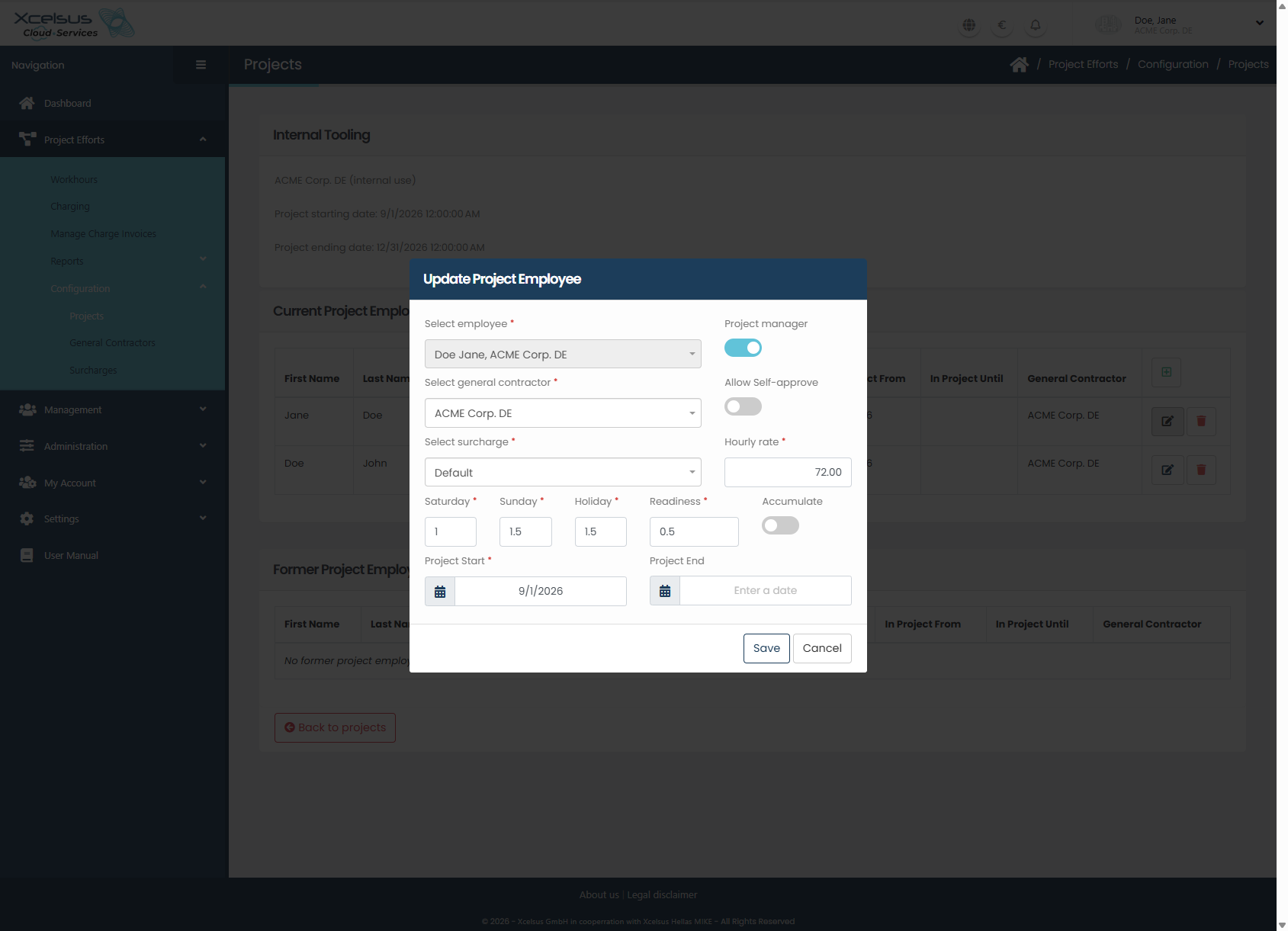
An employee can't have two overlapping assignments on the same project. Assigning them again with a later start date automatically closes out their previous open-ended assignment the day before the new one begins — you don't need to close it yourself.
Removing an assignment moves the employee to Former Project Employees rather than deleting their history.