
Transactions
See every movement on your account balance — money you added, charges for your subscriptions, renewals and refunds — and check what your balance is right now. Each entry says what it was for and what your balance was afterwards, so you can reconcile your balance yourself.
Permissions
| Action | Who can do it |
|---|---|
| Open the Transactions page and read your history | People who are allowed to read account transactions |
| See your balance in the top bar (the € icon) and use the Add Funds buttons | People who are allowed to add funds |
For administrators: assign these under Administration → Authorization → User Permissions, listed under the Application Framework application: Read account transactions (the page) and Create payments (the € icon and the Add Funds buttons). Both are part of the built-in AF Admin (System) and AF Accountant (System) groups.
Opening your transactions
- In the left-hand menu, click My Account → Transactions.
Or, from any page, if you see the € icon in the top bar:
- Click the € icon. Your current balance is shown.
- Click Show Transactions.

What you see on the page
The page has two parts: a filter at the top and your transactions below it.
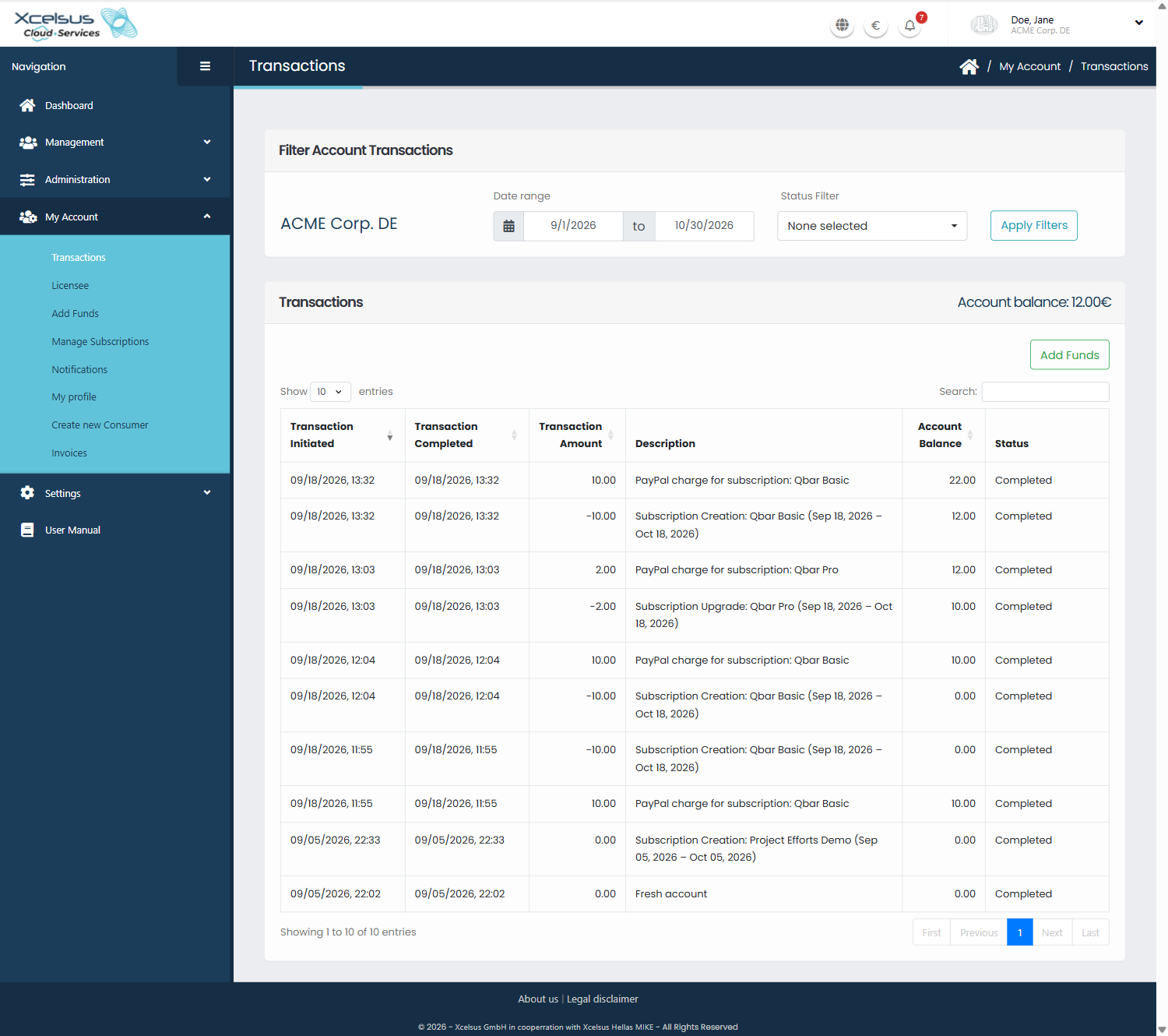
- Account balance (top right of the Transactions box) is your balance right now.
- Add Funds opens the page for topping up your account (see Add Funds).
- The table lists one transaction per row, newest first:
| Column | What it shows |
|---|---|
| Transaction Initiated | The date and time the transaction was recorded, in your own time zone |
| Transaction Completed | When the money was booked. Empty while a payment is still waiting for confirmation |
| Transaction Amount | A positive amount adds money to your balance, a negative amount takes money from it |
| Description | What the transaction was for — see What each transaction means |
| Account Balance | Your balance right after this transaction |
| Status | Where the transaction stands — see Statuses |
Finding a transaction
By default the page shows the last 30 days.
- Under Date range, enter the first and last day you want to see.
- Click Apply Filters.
- To narrow the list further, type a word in Search — for example
UpgradeorPayPal. The search looks in the description and the status. - To change the order, click the Transaction Completed, Transaction Amount or Account Balance heading. Click again to reverse the order.
- To see more rows at once, change Show … entries (10, 25, 50 or 100), and use the page buttons below the table to move between pages.
If you see No data available in table, nothing was booked in the chosen date range. Widen the range and click Apply Filters again.
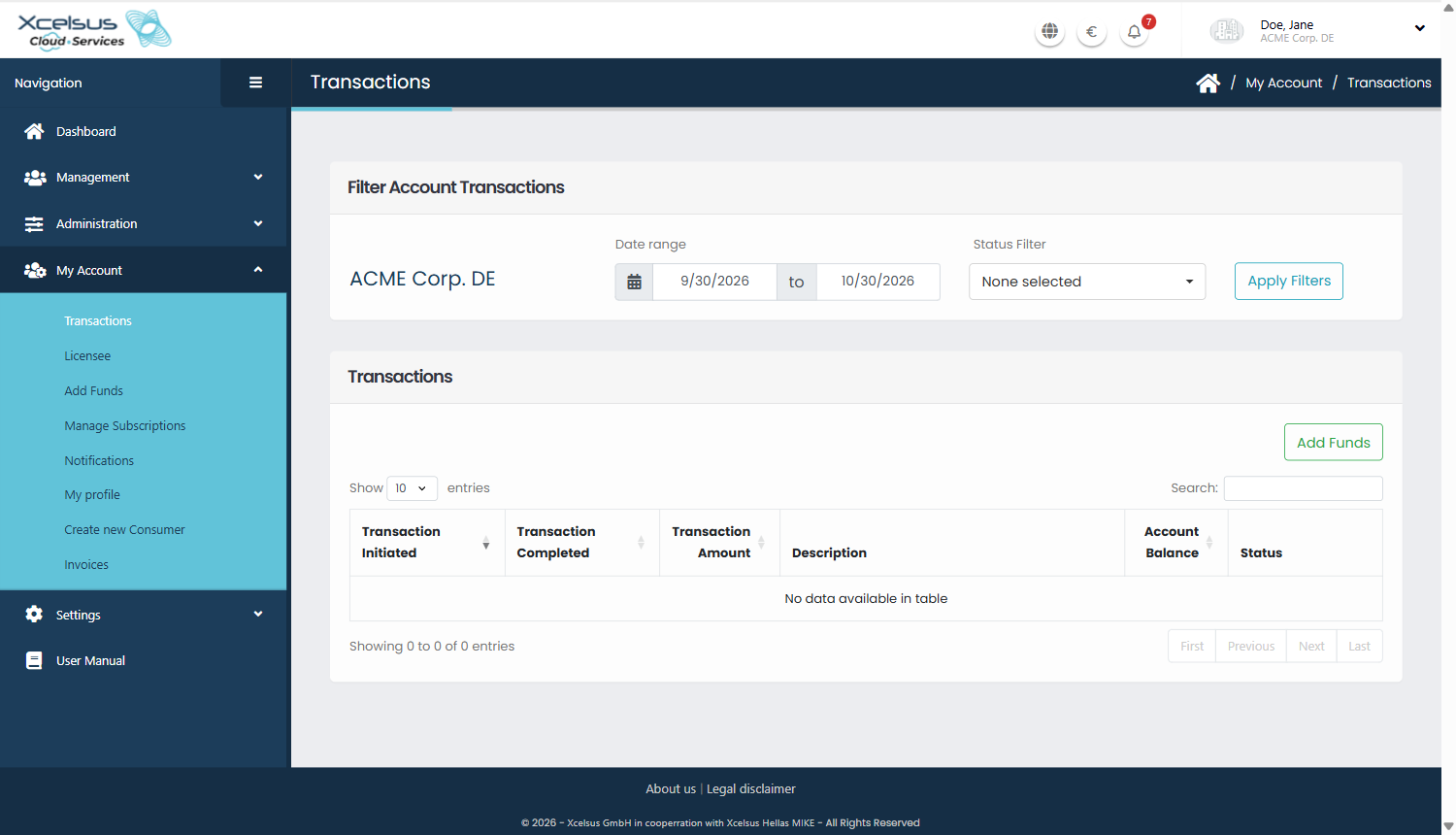
The Account balance at the top of the table only appears when the table shows at least one transaction.
What each transaction means
| Description | What happened | Amount |
|---|---|---|
| Fresh account | The starting entry when your consumer was created | 0.00 |
| PayPal charge for subscription: … or Stripe charge for subscription: … | You paid for a subscription with PayPal or a card. The payment is added to your balance first… | + |
| Subscription Creation: …, Subscription Upgrade: …, Subscription Renewal: … | …and then the price of the subscription is taken from your balance. The dates in brackets are the subscription period. A free or demo edition shows 0.00 | − |
| Created PayPal-payment. Amount: … or Created Stripe-payment. Amount: … | You started adding funds. It stays Initiated until the payment is confirmed | + |
| … charge via saved payment method … | You added funds using a saved card or PayPal account | + |
| … renewal payment: … | A subscription was renewed and the money was collected from your saved payment method | + |
| Refund: … | A payment was refunded to you; the amount is taken off your balance again | − |
| Any other text | A manual booking, for example a bank transfer that Xcelsus entered for you | + or − |
A description with (pending) at the end of the first part means the payment was started but has not been confirmed yet.
A subscription you pay for with PayPal or a card therefore appears as two rows with the same time: first the payment that adds money, then the charge that takes it away. If you pay a subscription from your existing balance, you only see the charge.
Statuses
| Status | Meaning |
|---|---|
| Initiated | A payment was started but is not confirmed yet. It does not change your balance |
| Completed | The transaction is booked and counts in your balance |
| Fulfilled | The payment was confirmed. The money itself appears in a separate Completed row. A charge that has been put on an invoice can also be shown as Fulfilled |
| Canceled | The payment did not go through, or it was refunded in full |
Reconciling your balance
- Set the Date range to cover the period you want to check and click Apply Filters.
- Click the Transaction Completed heading until the arrow points up and the oldest transaction is at the top.
- For each row, check that Account Balance equals the previous row's balance plus the Transaction Amount. For example: a balance of 12.00 followed by a payment of +10.00 gives 22.00, and a subscription charge of −10.00 then gives 12.00.
- The balance above the table (and in the top bar, if you see the € icon) equals the Account Balance of your newest transaction.
Good to know
- Transactions created within the same minute can be listed in either order. Use the Account Balance column to see which one came first.
- On some accounts, entries from before 8 October 2026 may not add up exactly — you can see a balance that jumps between two rows. If entries from after that date do not add up, contact support.
Troubleshooting
I don't see the Transactions page
You need the permission to read account transactions. Ask your administrator to check your permissions under Administration → Authorization → User Permissions.
The table is empty, but I know I had transactions
The page starts with the last 30 days. Set an earlier From date and click Apply Filters.
The balance above the table is missing
It appears together with the first row of the table. Choose a date range that contains at least one transaction.
A warning "DataTables warning: Ajax error" appears when I click a column heading
This can happen when you click the Transaction Initiated heading while the table is still sorted newest first. Close the message and click the heading again, or sort with the Transaction Completed heading instead. Your transactions are not affected.
My payment is Initiated and my balance did not change
The payment provider has not confirmed the payment yet. The balance changes when a Completed row for the payment appears. See Add Funds if it stays that way.
A subscription charge looks wrong
Check the subscription period in the description against My Account → Manage Subscriptions (see Manage Subscriptions).
Getting help
If a transaction looks wrong or your balance does not add up, contact **support@xcs.app** with:
- The date, amount and description of the transaction
- Your balance before and after, as shown in the table
- What you expected to see