
Users
See everyone who belongs to your organization, and manage their access: make someone an owner, switch their access off and on, send them a password reset link, or remove them.
Permissions
| Action | Who can do it |
|---|---|
| Open the Users page and see the list | Users with the "Read users" permission |
| Switch someone's access off or on ("Is Deactivated") | Users with the "Update users" permission |
| Make someone an owner, or remove ownership ("Is Owner") | Organization owners — the switch is only shown to owners |
| Remove someone from your organization | Users with the "Delete users" permission |
| Send someone a password reset link | Users with the "Send password change request" permission |
Users and owners — what's the difference?
A user is a person with an XCS.AF account. The same person can belong to several organizations, and what they can do is set separately in each one — they can be an owner in one, switched off in another, and an ordinary member in a third.
An owner automatically gets everything your organization's subscription includes. That is why owners don't appear in the User Permissions list: their access doesn't come from individual permissions or User Groups at all. Give ownership carefully.
Everything on this page changes a person's place in your organization only — it never touches their other organizations. The one exception is the password reset link, which is about the person's own account.
What the page shows
- In the top navigation, click Administration → Users.
- The table lists everyone in your organization with their last name, first name, salutation and email. You can sort by any of those columns, search with the box above the table, and choose how many rows to show.
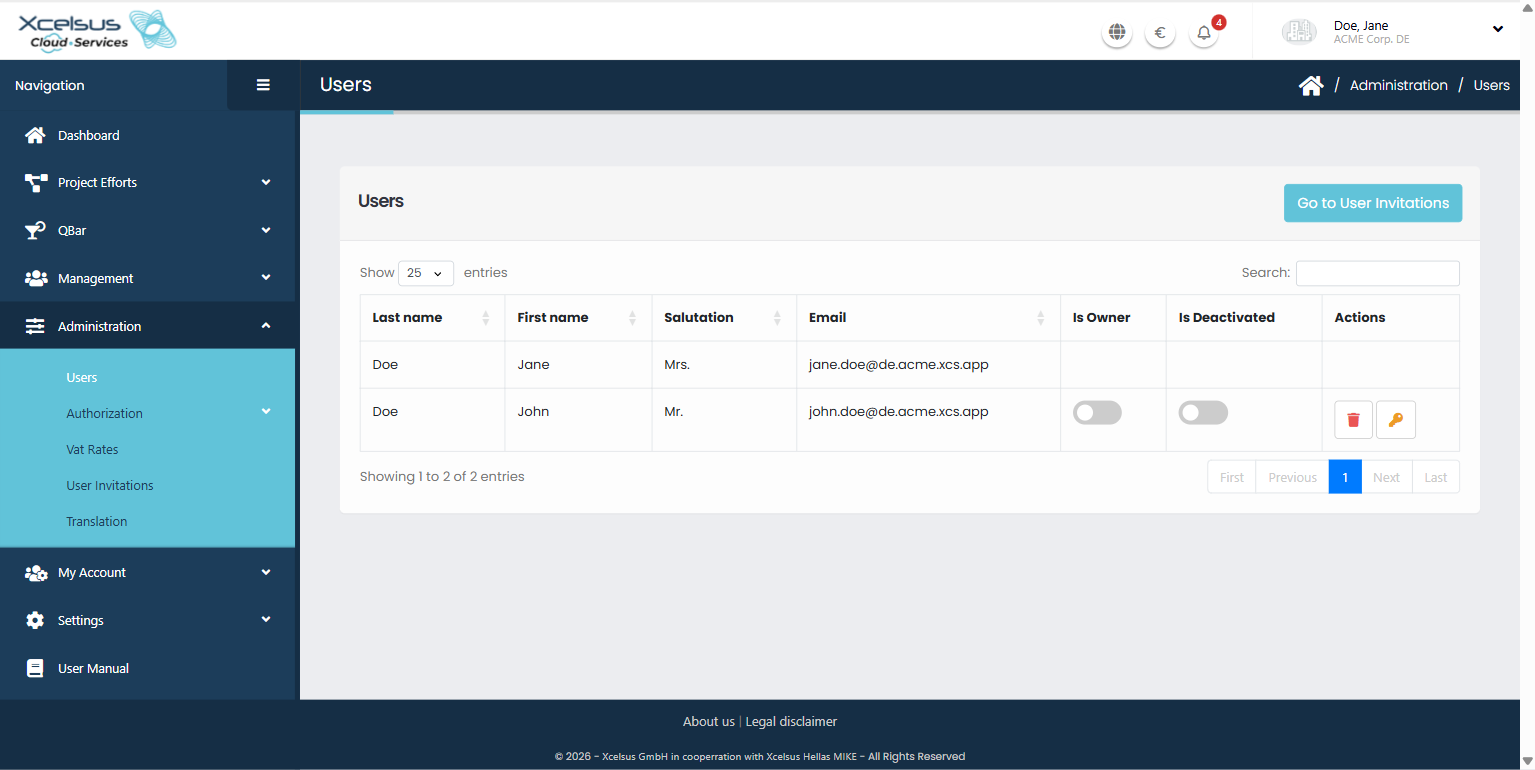
Further columns depend on your rights:
- Is Owner — shown only if you are an owner.
- Is Deactivated — the column heading is always shown, but the switches appear only if you can update users.
- Actions — the trash icon (remove) and the key icon (password reset), each shown only if you have the matching permission.
Your own row has no switches or buttons. You can't change your own ownership, switch yourself off, remove yourself or send yourself a reset link from this page. (To leave an organization yourself, use My profile.)
Adding someone
There is no "add user" button on this page — people join by invitation. Click Go to User Invitations (top right) to invite someone; see User Invitations. Once they accept, they appear in this list.
Making someone an owner
- In the person's row, switch Is Owner on.
- A green message confirms "User is now an owner."
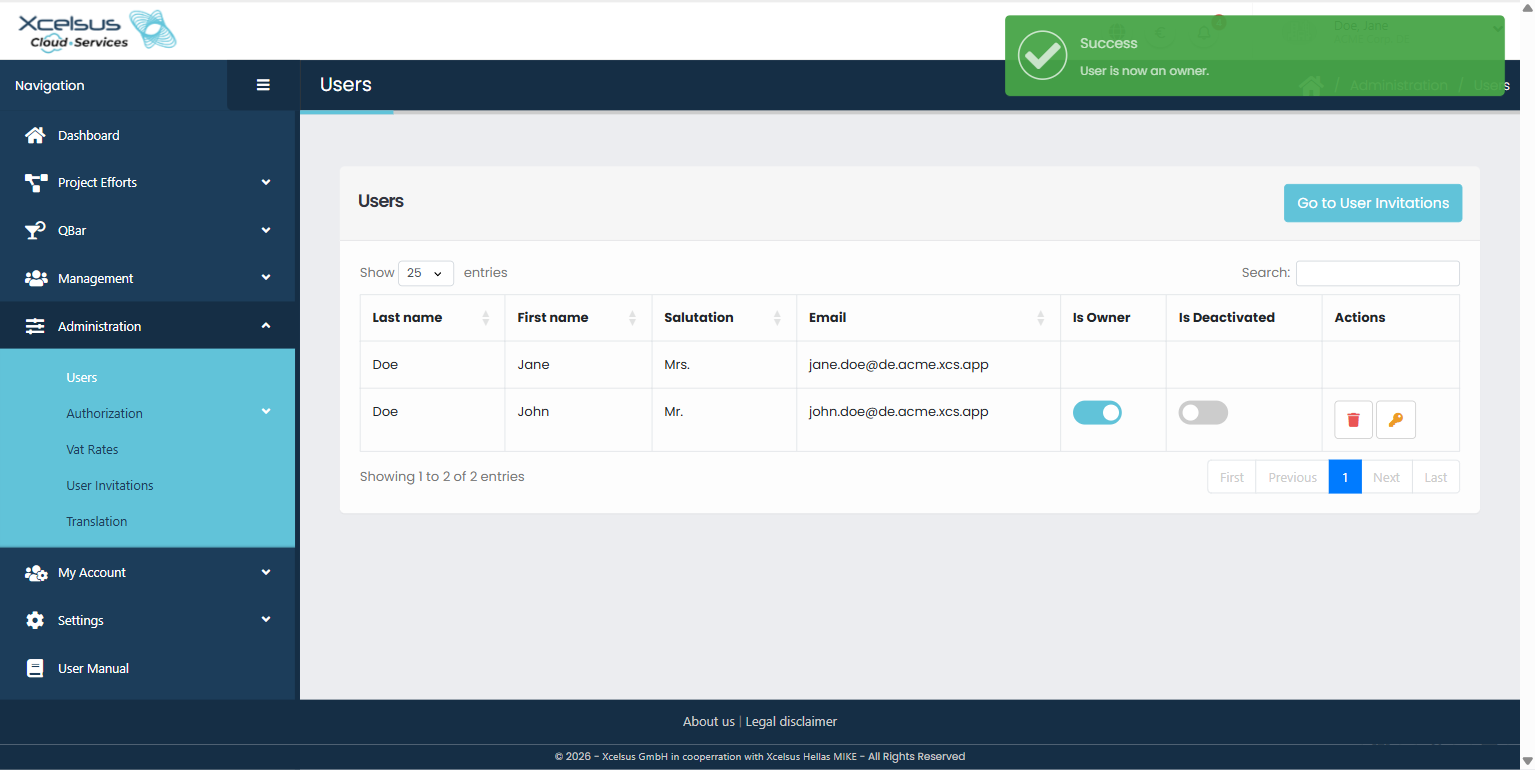
Switch it off the same way; the message then reads "User is no longer an owner." The change applies to that person's next page load — they don't need to sign in again.
Switching someone's access off (deactivating)
Use this when someone should lose access for now but you don't want to remove them — for example while they are away or under review.
- In the person's row, switch Is Deactivated on (it turns red).
- A green message confirms the change. The person is told through an in-app notification.
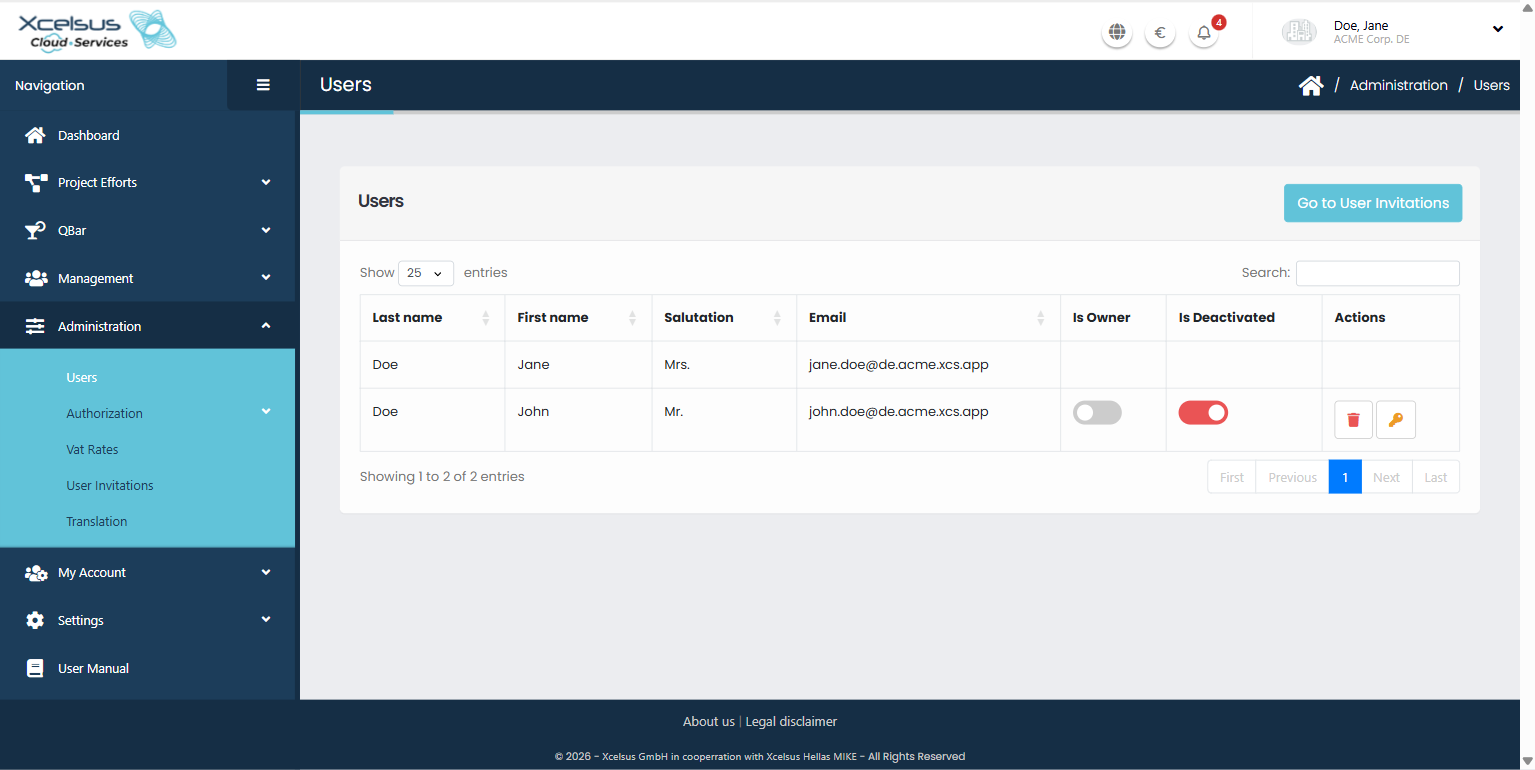
A deactivated person can still sign in, but in your organization they can't use any of its features — the dashboard shows a notice that their access has been denied. They keep their permissions, groups and settings, so switching them back on restores everything exactly as it was — switch Is Deactivated off again and the message "User is activated." appears.
Deactivation only applies to your organization; the same person's access in other organizations is not affected.
Sending a password reset link
- In the person's row, click the key icon.
- A green message confirms that the request was sent.
The person receives an email with a link to set a new password. The link is valid for 24 hours, and the email names you as the person who requested it. You never see or set the password yourself.
Removing someone from your organization
- In the person's row, click the red trash icon.
- In the confirmation window — "Deleting name is irreversible!" — click Yes to remove them, or No to cancel.
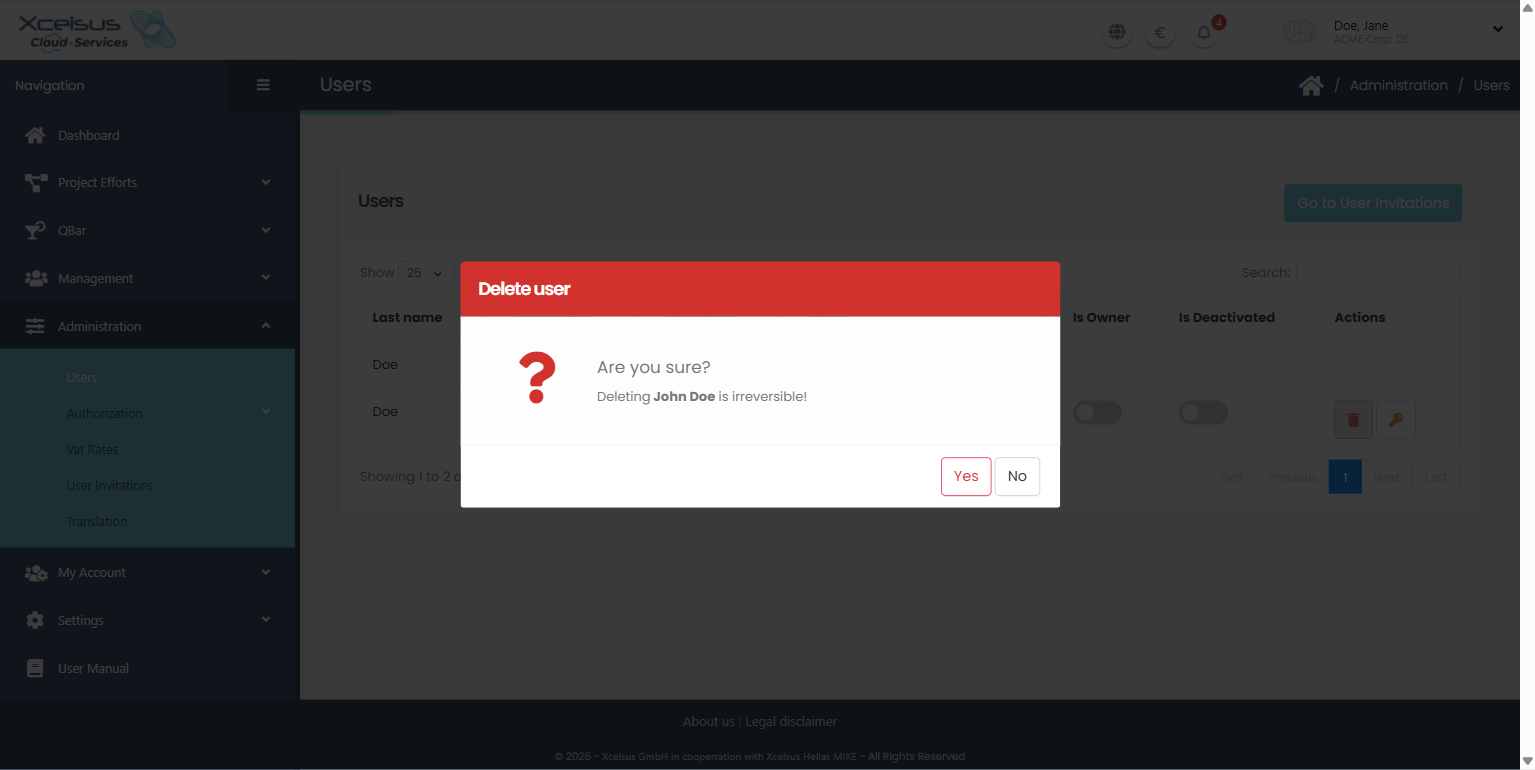
What this does:
- The person is removed from your organization only. Their account and any other organizations they belong to stay as they are.
- Their permissions, group memberships and personal settings in your organization are removed too. To bring them back, you have to invite them again.
- If the person is linked to an employee record, the removal is refused with the message "There is an employee assigned to this user. Delete the employee first in order to delete this user." Remove the employee first.
Be careful with owners. The page does not stop you from removing — or deactivating — an owner, including the last one. Make sure someone else is an owner first.
Troubleshooting
I don't see "Users" in the menu
You need the "Read users" permission. Ask an owner or an administrator who can assign permissions — see User Permissions and User Groups.
I can see the list, but no switches or buttons
Each column and button needs its own permission (see the table at the top), and your own row never has any. If you're missing something you expect, ask an administrator.
The switch for "Is Owner" isn't there
Only owners see it.
Removing a person fails
The most likely reason is that they are linked to an employee — remove the employee first. If the message says something else, contact support.
The person I'm looking for isn't in the list
The list shows only people who belong to your organization. If they were invited but haven't accepted yet, look under Go to User Invitations.
Getting help
If something here doesn't match what you see, contact **support@xcs.app** with the person's name and what you were trying to do.